

Quick Summary: Best Free Screen Time Apps

1. Lusid — Best Overall: for Highly Customizable Blocks That Last
All-in-one flexible blocking with separate rules for temporary access and permanent edits, helping limits stick and sustain reduced screen time.
2. ScreenZen — Best for Mindful Pauses
Effective scheduled blocking, flexible usage limits, and screen time tracking with mostly wait-based overrides.
3. Foqos — Best for Simple Scan-Based Blocking
Free, open-source blocking using your own NFC tags, QR codes, or barcodes, without a dedicated device purchase.
4. Apple Screen Time — Best for Simple Built-In Limits
Basic daily limits, Downtime, and usage reports built into the iPhone, with no app to download.
5. StayFree — Not Recommended
Detailed cross-device tracking, but unreliable iPhone blocking makes it a poor choice for enforcing limits.
The average person spends 6 hours and 58 minutes a day looking at screens, with 3–5 hours spent on a mobile phone. Much of that time goes to addictive social media platforms like Instagram, YouTube, and TikTok, where algorithms are designed to maximize engagement. We often feel we wasted precious time and find it harder to focus on tasks we need to do—or neglect things we would rather be doing.
Screen time apps have emerged to help curb this problem. Most are paid and offer similar features: blocking apps and websites on a schedule or after a daily usage limit. Their approaches vary, from gentle, mindful nudges and easily overridden limits to pauses, challenges, and strict blocks with no option to bypass them.
Some paid apps charge premium prices, such as Opal at $100 per year, while many others cost around $4–$5 a month. However, free alternatives have emerged, and in our experience, some outperform even the paid options.
We installed and tested each of these apps, examining their blocking effectiveness and customizability, how easy it was to bypass or delete blocks, and whether we kept using them over the following weeks. Most importantly, we looked at whether they actually reduced our screen time long term.
How We Tested
We evaluated each screen time app across five criteria over several weeks of real daily use:
- Blocking Effectiveness. Does the app block apps and websites when we are most likely to use them, and does that reduce our screen time?
- Bypassability. How easy is it to override or delete a block, regain access to blocked apps, or simply delete the screen time app?
- Customizability. Can you tailor blocks to your workflow, including which apps and websites are blocked and when you can override, edit, or delete those blocks?
- Ease of use. Is setup simple and straightforward? Does the app work as expected, or does confusing behavior require awkward workarounds?
- Long-term sustainability. Do we keep using the app for several weeks, with our blocks intact and our screen time reduced, or do we remove or ignore it within a few days of use?
The 5 Best Free Screen Time Blockers
#1 Lusid — Best Overall: for Highly Customizable Blocks That Last
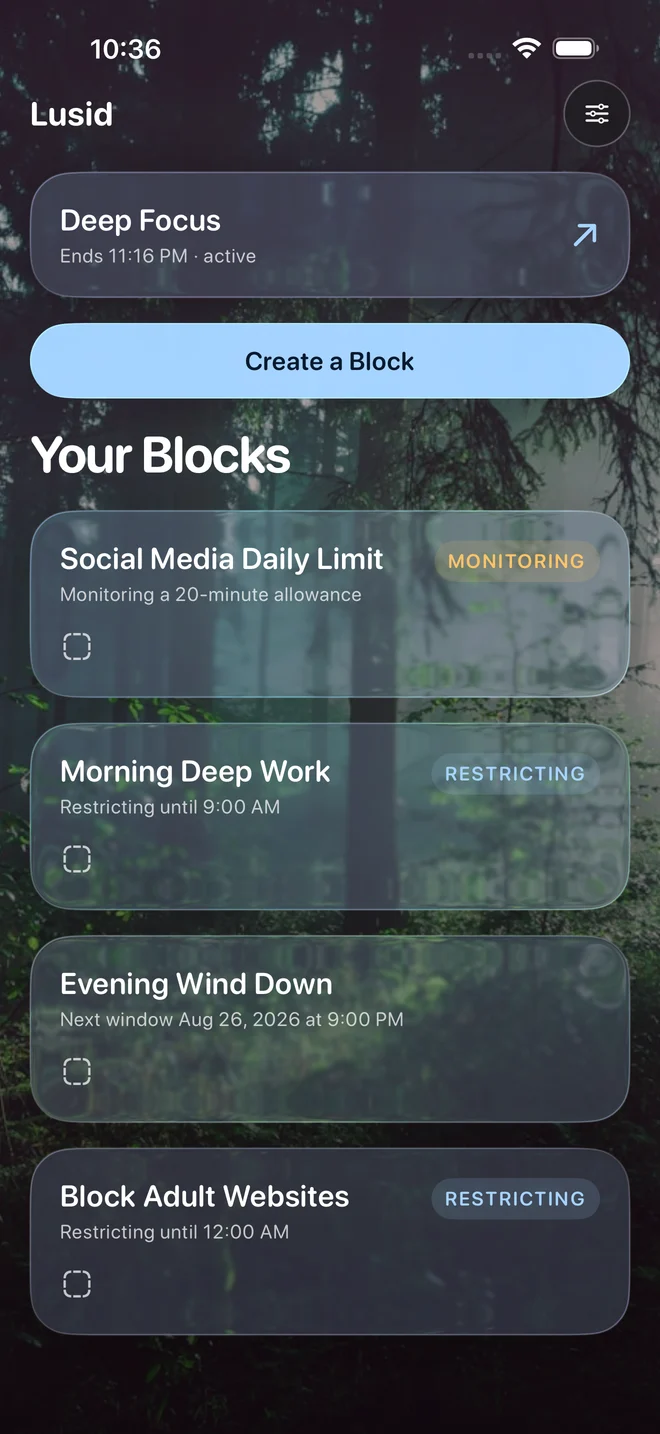
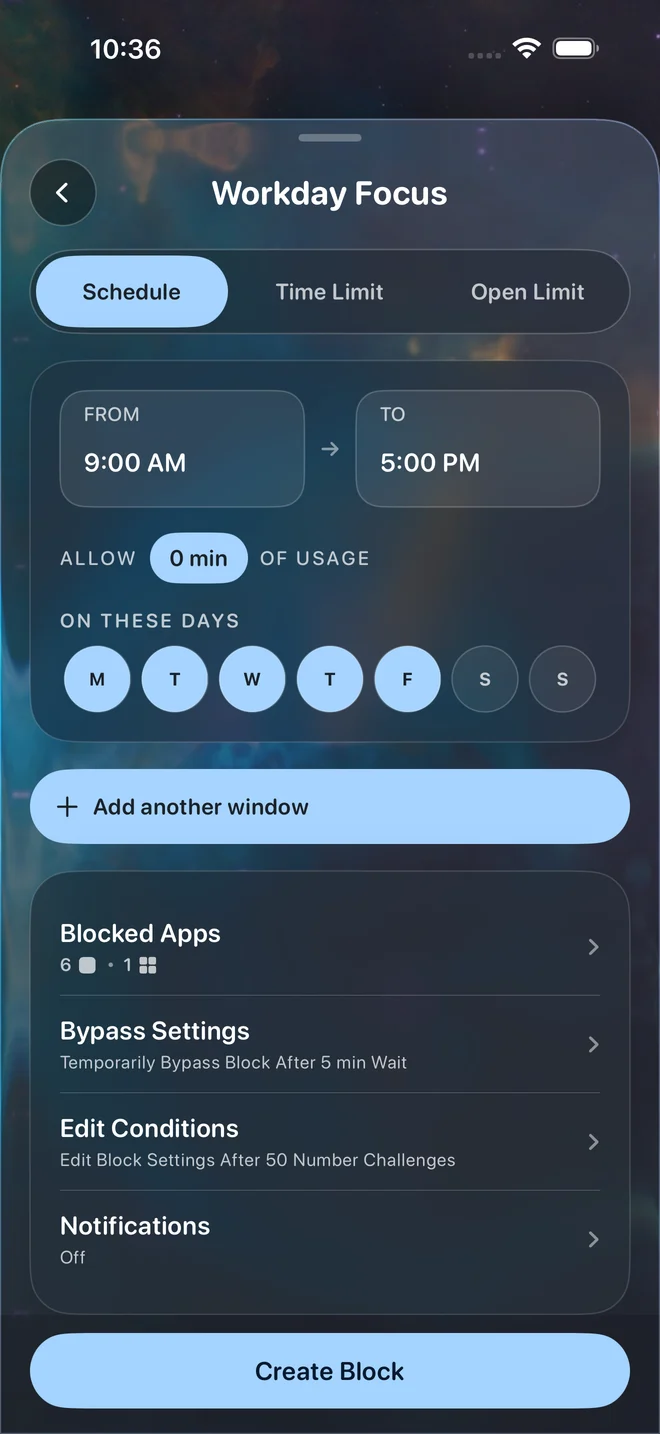
Lusid is a free iPhone screen time app that brings schedules, usage limits, focus sessions, and physical-scan blocking together in a modern interface. Its range covers the main blocking approaches found across free and paid solutions, serving as an alternative to apps like Opal and Brick, with options for everyday limits, uninterrupted work, and spontaneous periods of focus. The emphasis is on giving you enough flexibility to manage different distractions in one app.
It also addresses a familiar problem with screen time limits: they stop helping once they become too easy to bypass or delete. Lusid lets you customize both the restrictions and the conditions for getting around them, so occasional access does not have to mean abandoning your limits. The aim is to make reduced screen time sustainable—leaving more time for work, relationships, and habits without repeatedly having to rebuild your blocking setup.
How It Blocks
- Schedules. Block selected apps, categories, websites, adult content, and app installs—or use an allowlist. Add any number of weekly time windows to a schedule and set its usage allowance, which defaults to zero minutes.
- Time limits. After a chosen amount of app use, block access for a set number of minutes or hours, or for the rest of the day.
- Open limits. Limit how many times you can open selected apps and how many minutes you get per opening.
- Focus sessions. Start a timed block whenever you need to focus.
- Physical scans. Activate blocking by scanning a physical QR code or barcode.
How You Override Blocks
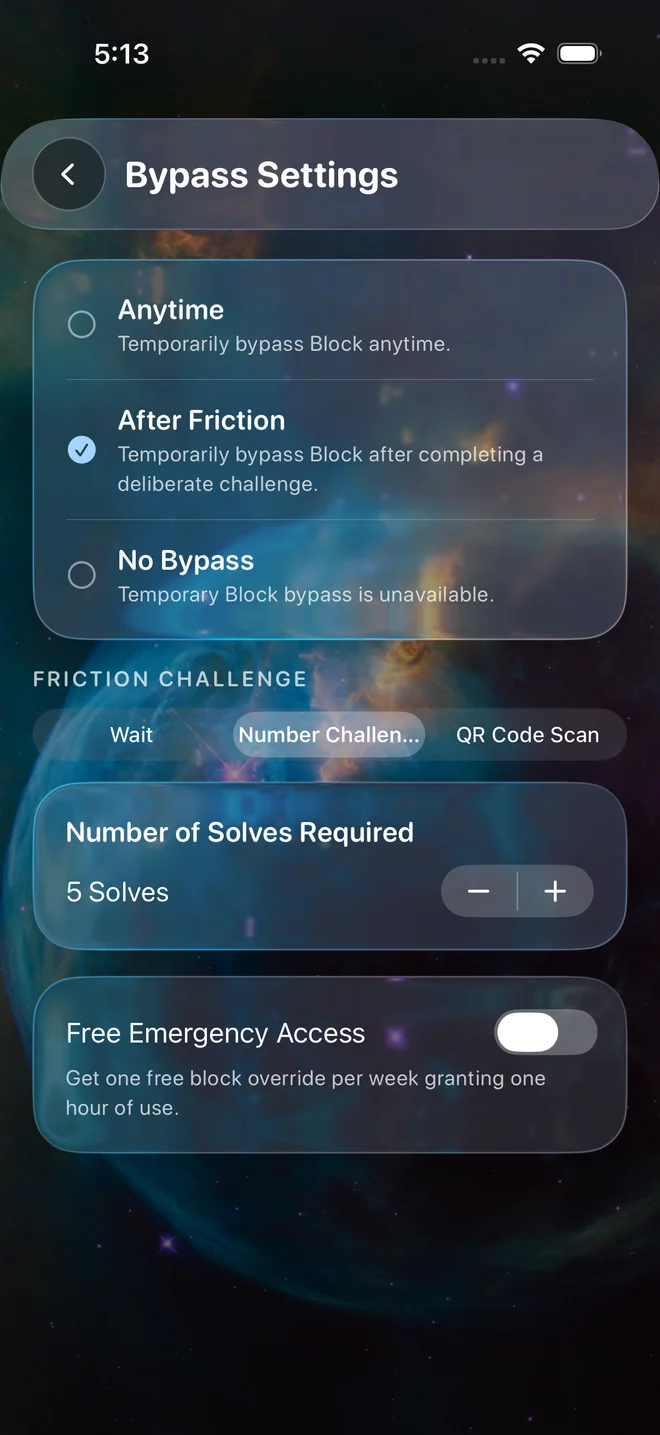
- Customizable friction. Choose a wait of a configurable number of minutes, an adjustable-length number challenge, or a QR/physical scan. You set how many repetitions are required, from light friction to a substantial hurdle. You can configure these separately for temporary access and for editing, pausing, or deleting blocks.
- Temporary access. Choose whether temporary access is always available, requires friction, or is never allowed. Each unlock lasts up to 15 minutes. Getting more time requires another override; when friction is enabled, it increases with successive overrides.
- Edit, pause, and delete rules. These share a separate set of conditions, so you can make lasting changes harder than temporary access. A brief unlock need not become a permanent deletion, helping your blocks stay in place over time. Edits that weaken restrictions require the configured friction; stricter changes, such as adding apps or shortening a time limit, are always available.
- Emergency access and scheduled editing. One emergency access is available each week. Separately, you can allow edits on specified days between certain times, or after a scheduled date and time.
What we liked
- A wide range of blocking options: schedules with usage allowances, time limits, open limits, focus sessions, and physical scans.
- Separate conditions for temporary access and lasting changes let you get a brief break without removing future blocks.
- Adjustable friction includes both passive waits and active number challenges with a customizable repetition count.
- Temporary access is capped at 15 minutes, with increasing friction for repeat overrides.
- You can strengthen a block at any time without completing an override challenge.
- A beautifully designed, modern interface with Liquid Glass aesthetics.
What could be better
- Not available on Android.
- Limited screen time reporting. You'll have to use the built-in iPhone analytics to track changes.
- No automatic location-based blocking. You'll have to keep a physical scan at a specific location and scan it manually to approximate that behavior.
Verdict — Best Overall
Best for people who want highly customizable blocks and bypass controls that help those blocks stay in place long-term.
Lusid brings a broad range of blocking options into one free app, with the flexibility to handle daily limits, uninterrupted work schedules, and spontaneous focus sessions. By letting you set different hurdles for brief access and lasting changes, it helps prevent a moment of distraction from undoing the limits you want to keep. Together, those controls support reduced screen time over the long term, leaving more room for work, relationships, and habits.
Download Lusid#2 ScreenZen — Best for Mindful Pauses
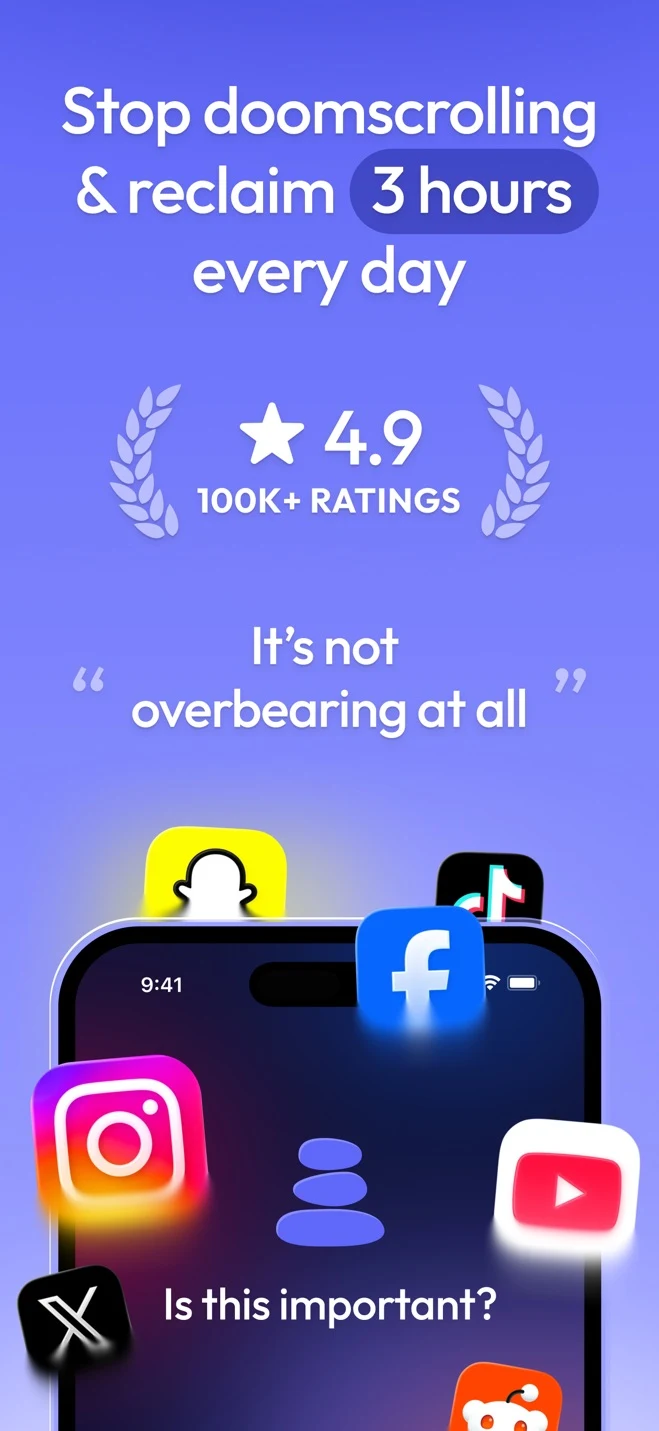
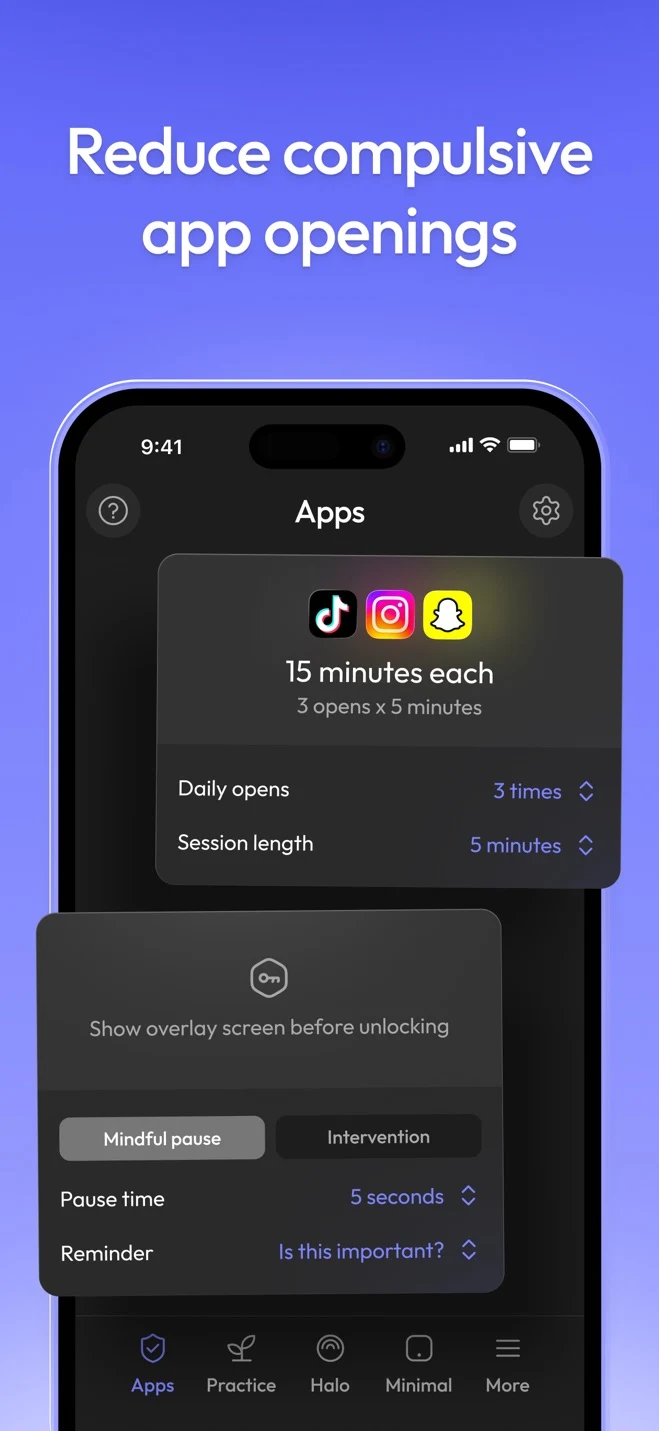
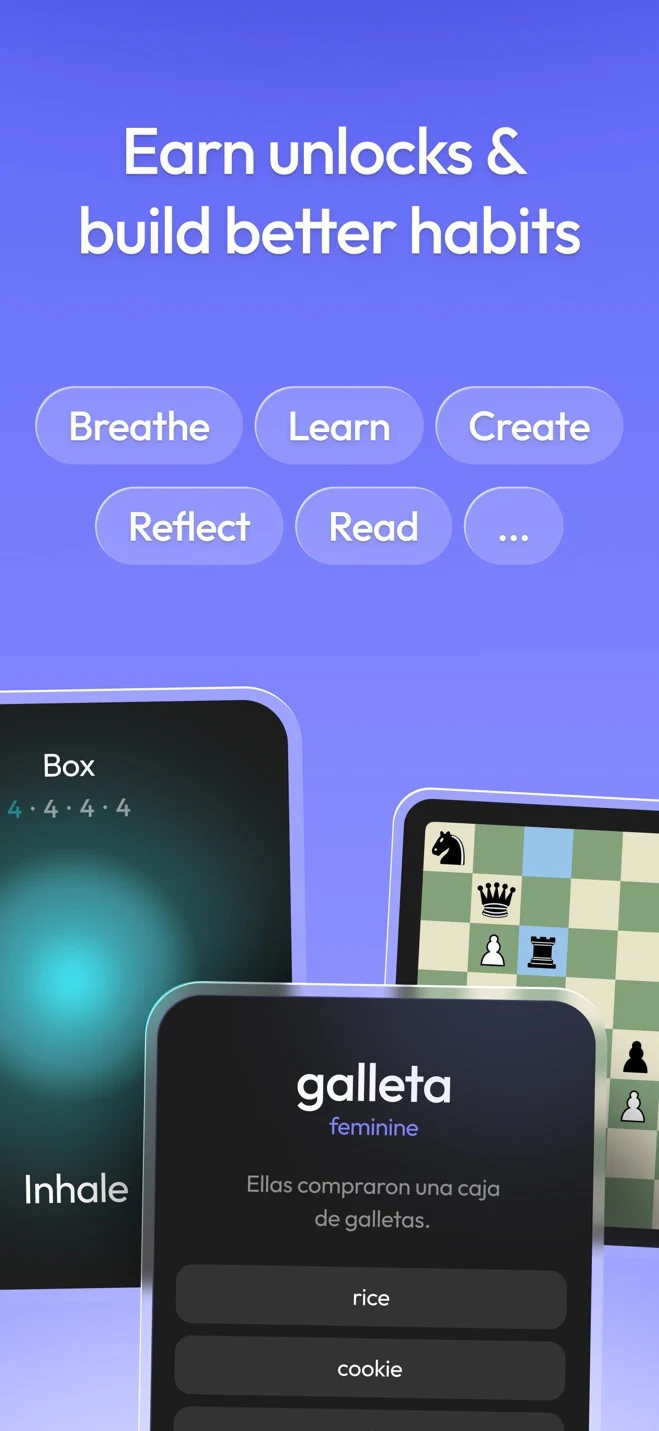
ScreenZen is one of the early free screen time apps. It has been around for several years, building a large user base and tens of thousands of reviews. That history makes it an established option, even as newer alternatives offer improved approaches to blocking and overrides.
Free and donation-supported, ScreenZen helps interrupt the habit of opening distracting apps without thinking. A pause before opening gives you time to reconsider, with prompts and activities such as breathing exercises to fill the wait. Scheduled blocks, time and open limits, and settings locks provide firmer boundaries, while usage tracking and streaks help you monitor your habits.
How It Blocks
- Schedules. Choose days and times, with multiple windows per schedule, to block selected apps during those periods.
- Combined open and time limits. Set how many opens you get and how many minutes each opening allows. Block access after a chosen number of opens or a total amount of screen time.
- Focus sessions. Start a timed session to block distractions when you need to focus.
How You Override Blocks
- Full blocks or temporary access. Schedules and usage limits can prohibit overrides or allow access after an unlock condition, for the minutes configured per opening.
- Waits and interventions. Choose a wait, an activity, or both. Most activities are optional, so the intervention amounts to a wait. At its hardest setting, the only truly active intervention takes roughly 2–3 minutes to complete. Waits can be configured to increase with successive overrides.
- A separate settings lock. Editing, pausing, and deleting use an app-wide lock, opened through scheduled windows, a wait, passcode, location, partner approval, or paid emergency access. New blocks can still be created while locked, but existing ones stay hidden. Unlocking exposes every block to changes or deletion, not just the one you intended to edit.
- Quick disable. After unlocking settings, you can pause all blocks for a chosen duration. This button can require an additional wait or be disabled entirely.
What we liked
- Effective blocking through schedules, combined open/time limits, and focus sessions.
- Strict mode can prevent temporary overrides when you want a firm boundary.
- Temporary app access and changes to existing blocks have separate controls.
- Location-based settings access and partner approval offer alternatives to waiting or remembering a passcode.
- Step-based unlocking can encourage walking, and waits can increase after repeated overrides.
- A countdown at the top of the screen shows how much time remains in an unlocked session.
- Screen time reporting and usage goals help you track your habits.
What could be better
- A dated, confusing interface makes setup harder, with useful controls scattered across settings.
- Temporary overrides offer limited resistance: most interventions are optional activities during a wait, while the required challenges are brief. They work better as reminders than strong barriers.
- The settings lock makes small changes cumbersome but grants broad access once unlocked, exposing every block to deletion. Even stricter edits require unlocking, and protecting access may mean relying on someone else rather than completing an adjustable challenge.
- Occasional exceptions are awkward to manage: long waits delay legitimate access, while the fixed $5 emergency unlock can become an easy, costly habit.
- No QR/barcode or physical-device scanning in the free app.
Verdict — Best for Mindful Pauses
Best for people who want usage tracking and mindful pauses from an established app with a large user base, and are less concerned with easy bypasses or fine-grained customization.
ScreenZen is best when you want a reminder to stop scrolling: its pauses give you time to reconsider, but they do little to stop you if you are determined to continue. Strict blocks offer a firmer boundary, yet unlocking settings for one exception also lets you easily delete other blocks. It handles basic blocking well, but keeping those limits in place over time still depends heavily on your willingness to leave them alone.
Download ScreenZen#3 Foqos — Best for Simple Scan-Based Blocking
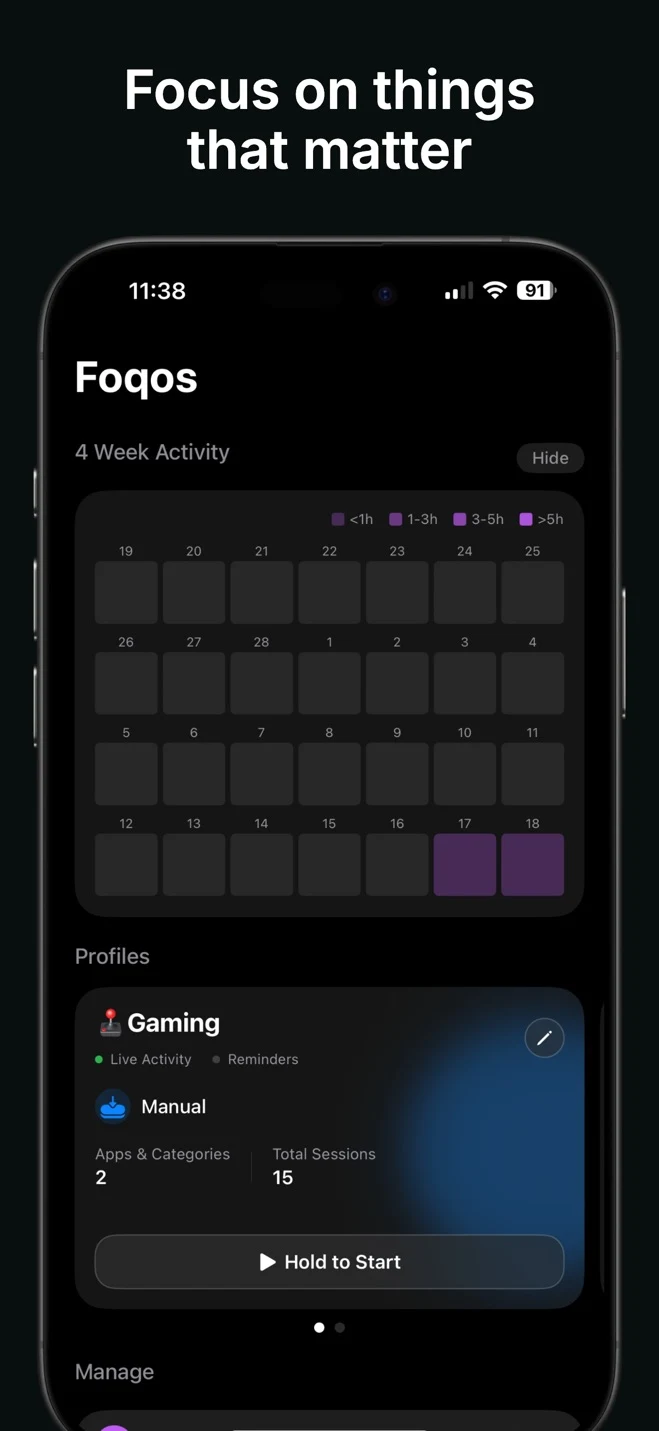
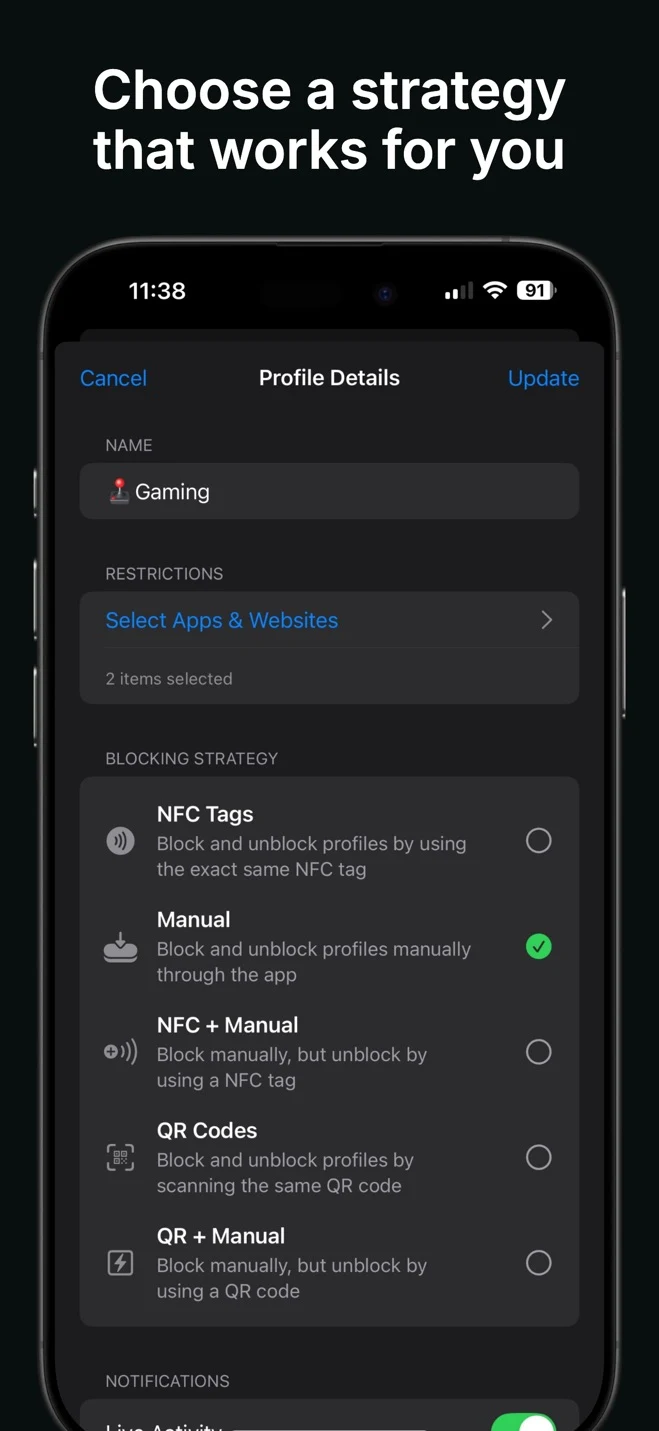
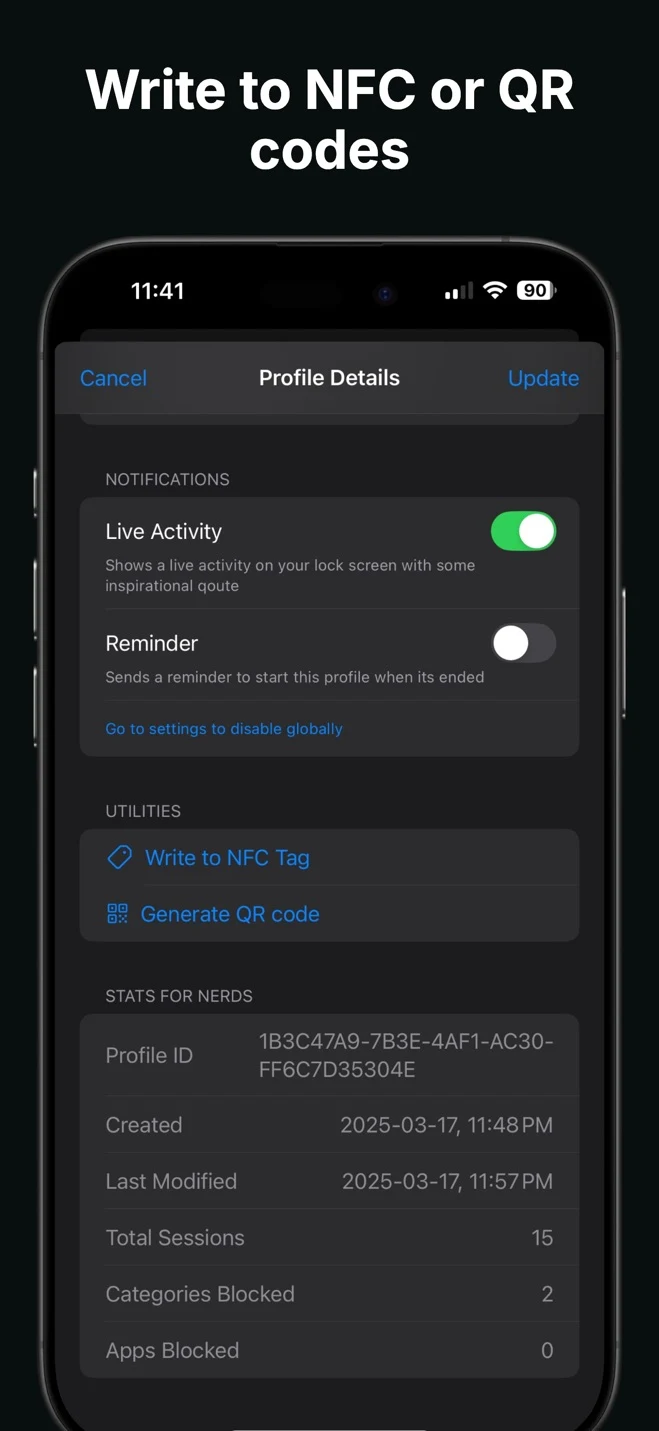
Foqos is a free, open-source iPhone app blocker built as an alternative to products such as Brick. It offers the same central idea—using a physical scan to start or stop a block—without requiring a branded device. You can use an ordinary NFC tag, a printed QR code, or a barcode; the app itself is free.
The appeal is straightforward: access to distracting apps can depend on returning to a physical object that's distanced from your work environment. Keeping the tag or code away from your desk or bed adds a deliberate step before scrolling. Blocking profiles let you choose different apps and websites for work, study, or downtime.
How It Blocks
- Focus sessions. Block selected apps, websites, and adult content by starting a session manually or scanning an NFC tag, QR code, or barcode.
- Scheduled sessions. Start blocks automatically on a schedule, using the same scan-based stopping rules as manually started sessions.
- Timed sessions. Block for a chosen duration, with an early exit through a scan or manual control, depending on the strategy. You can also choose a timer that cannot be stopped early.
How You Override Blocks
- Scan to stop. For scan-based sessions, ending the block requires the same physical tag or code used during setup.
- Optional breaks. Set a break allowance in advance, or allow none. Depending on the strategy, this can be a total duration, a number of breaks, or a set number of opens with a fixed number of minutes each. Access stops when the allowance is exhausted.
- Emergency access. Optionally allow a limited number of emergency unblocks within a configurable period—for example, three every two weeks.
- Editing and deleting. Inactive blocks can be edited or deleted directly in the app without a scan. This also applies to scheduled blocks between sessions, so future restrictions are easy to remove.
What we liked
- Clear, predictable blocking once configured, with physical scans that make ending a session deliberate.
- Break allowances are enforced, and emergency access has configurable limits.
- A clean, attractive interface with per-block insights and a calendar activity view for tracking focus sessions.
- Mac integration can sync blocked website domains.
- A free alternative to Brick using your own NFC tags, QR codes, or barcodes.
What could be better
- Blocks depend on your willpower: blocking sessions require you to start them, while scheduled blocks can be edited or deleted without a scan whenever inactive. One useful session may not translate into lasting restrictions.
- No schedules, time limits, or open limits without NFC scanning. Employs a very narrow set of blocking controls and functionality compared to most screen time apps.
- Setup is cumbersome, with many steps before the otherwise straightforward experience begins.
Verdict — Best for Simple Scan-Based Blocking
Best for people who want simple physical-scan blocking, useful focus-session insights, and a free alternative to Brick.
Foqos works well as a tool for deliberate focus sessions: the interface is clean, scans provide a clear stopping condition, and breaks behave predictably. Schedules can automate the start, but they do not protect future sessions from being deleted between blocks. It is a good fit for supporting an existing commitment to focus, and a less suitable choice if you need an external system that remains difficult to dismantle when motivation drops.
Download Foqos#4 Apple Screen Time — Best for Simple Built-In Limits
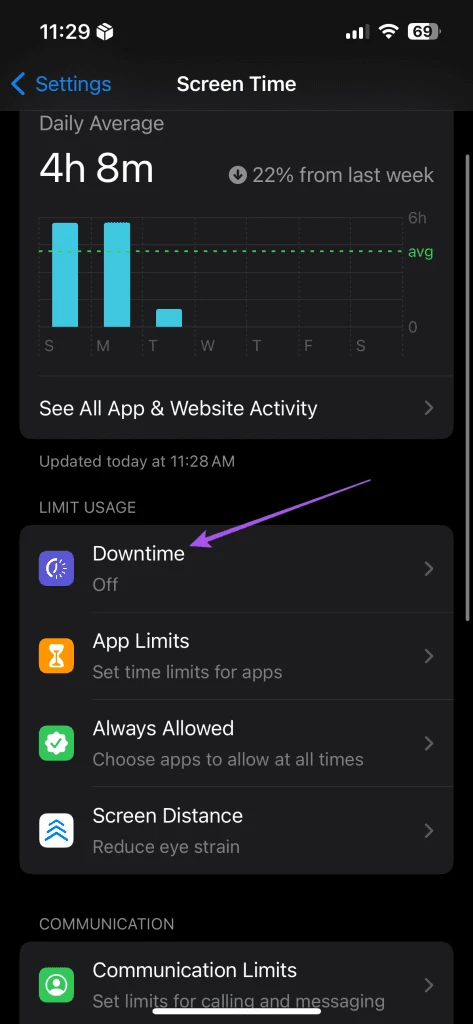
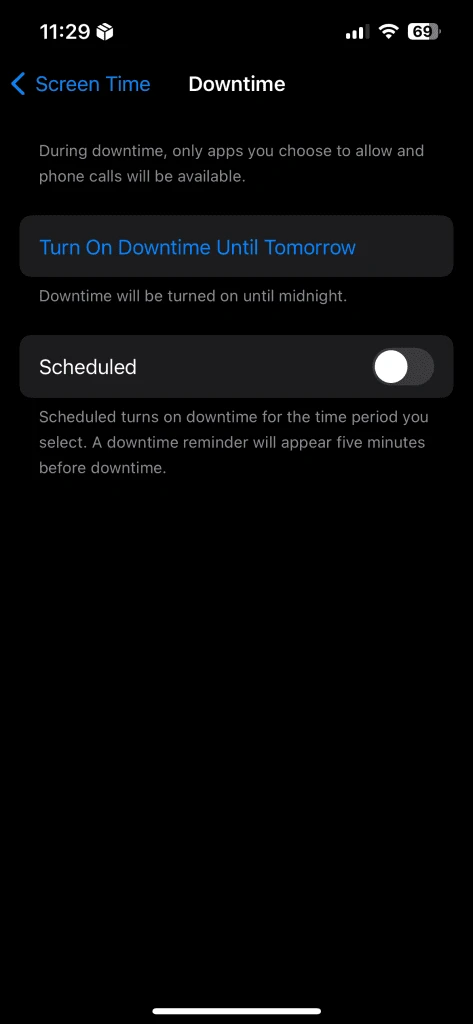
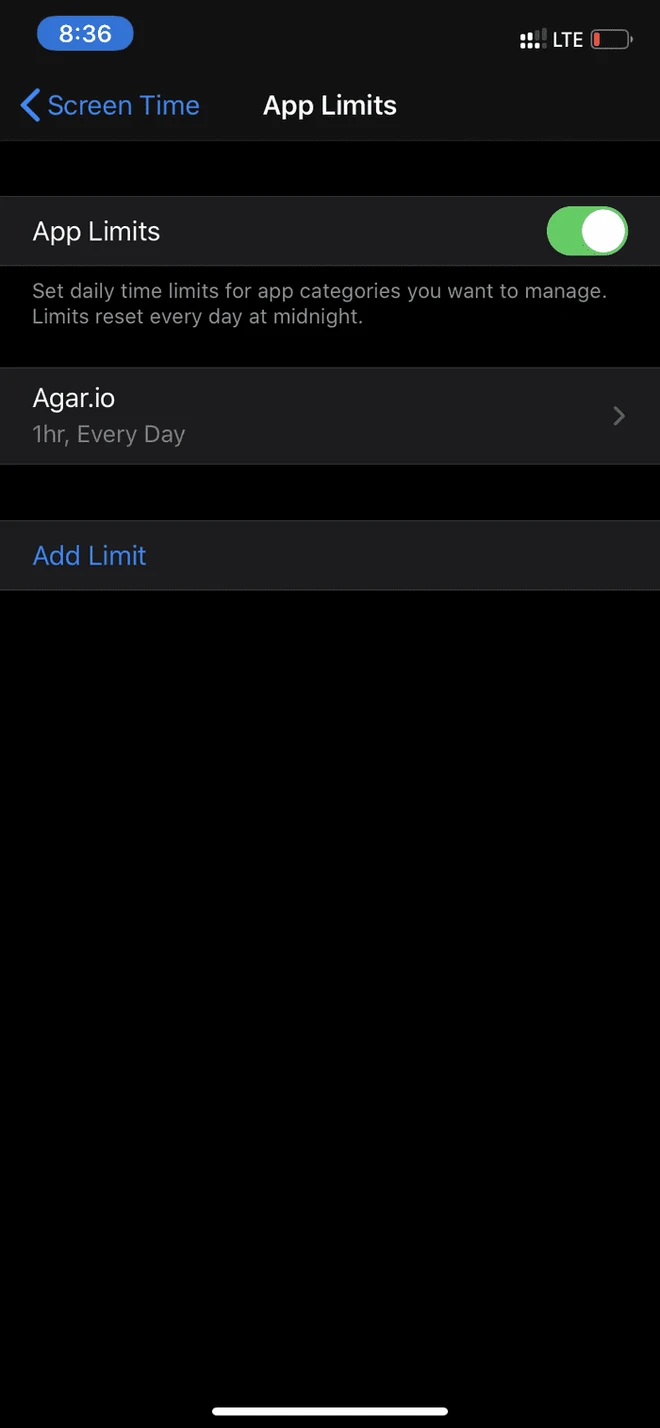
Apple Screen Time is the iPhone’s built-in option for monitoring usage and setting basic limits, with no download required. App Limits provide daily allowances, while Downtime creates a scheduled break from most apps. It is a convenient starting point if you want simple restrictions and usage reports in one familiar place, but lacks more comprehensive functionality.
The important distinction is between reminders and enforced limits. Screen Time can be easy to dismiss unless you enable its blocking settings and protect them with a separate passcode. That makes it more capable than the default experience suggests, but its effectiveness for self-control depends heavily on how that passcode is managed.
How It Blocks
- App Limits. Set daily usage allowances for selected apps, categories, or websites, with different amounts for different days. Access is limited once the allowance is used.
- Downtime. Create a single schedule with start and end times for each day, leaving only allowed apps and contacts available. This broad restriction suits bedtime better than multiple targeted work sessions; its app allowlist does not provide flexible per-website exceptions.
- Content restrictions. Separately filter adult websites or restrict specific sites through Content & Privacy Restrictions, without tying them to a daily allowance.
How You Override Blocks
- Reminders or enforced blocks. Without the blocking options enabled, limits can be easily ignored. To enforce blocks, set a four-digit Screen Time passcode, enable Block at End of Limit for App Limits, and enable Block at Downtime for the schedule.
- Passcode-based access. Temporarily bypassing blocks (between 15 minutes and for the rest of the day) or editing/deleting them requires the same Screen Time passcode. Many users find Screen Time ineffective because it is easy to remember the 4-digit passcode that makes temporary overrides and lasting changes easy.
- Managing the code. Screen Time is therefore ineffective unless a trusted person can set and hold the Screen Time passcode for you. Alternatively, services like Password-Locker help you enter this code without memorizing it, and let you retrieve it only after a tedious challenge or at previously scheduled periods.
What we liked
- Free and built into the device, with no separate app to install or grant Screen Time access.
- Basic limits are quick to set up once you know which blocking settings to enable.
- Native usage reports make it easy to see where your screen time goes.
- Passcode protection can make limits harder to dismiss, especially when someone else manages access to the code.
- On iOS versions before 26.4, third-party blockers’ Screen Time permissions can be easily disabled in Settings, rendering them useless. Apple’s built-in limits avoids any workarounds, as long as a trusted person or service manages the passcode.
What could be better
- Enforcement is not obvious: a passcode and the relevant blocking toggles are needed to turn dismissible reminders into firmer limits.
- A four-digit code is easy to remember, and the same code permits extra time and settings changes. Having someone else hold it adds back-and-forth whenever you need an exception or an edit.
- Limited flexibility: Downtime is a broad device-wide schedule rather than a set of independent blocks, with awkward website exceptions and few customizable override options.
- Strong self-enforcement may require another person or a separate passcode-management service.
Verdict — Best for Simple Built-In Limits
Best for people who want basic limits and usage tracking without downloading another app, and are comfortable managing a Screen Time passcode.
Apple Screen Time covers the basics, but making it difficult to bypass takes more setup than its built-in status suggests. A 4-digit Screen Time passcode is needed to enforce blocks, and having another person or service manage this for you can be cumbersome. While this passcode is still needed to ensure third-party apps cannot be easily toggled off in Settings since iOS 26.4, many other screen time solutions provide much greater configuration over blocks.
#5 StayFree — Not Recommended
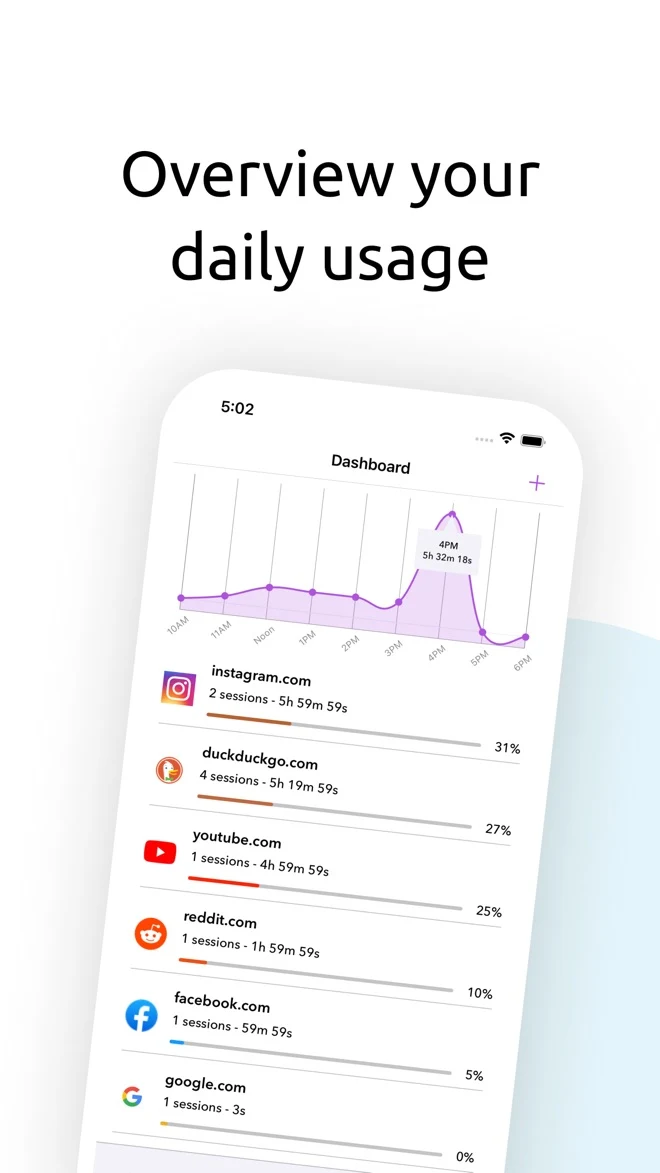
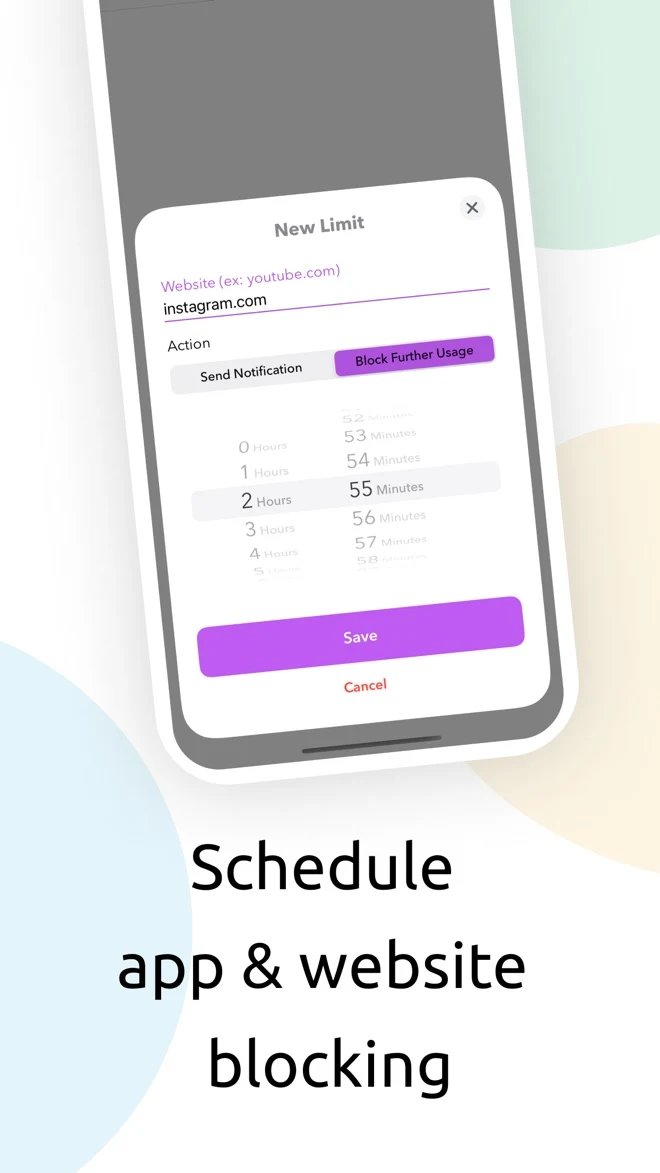
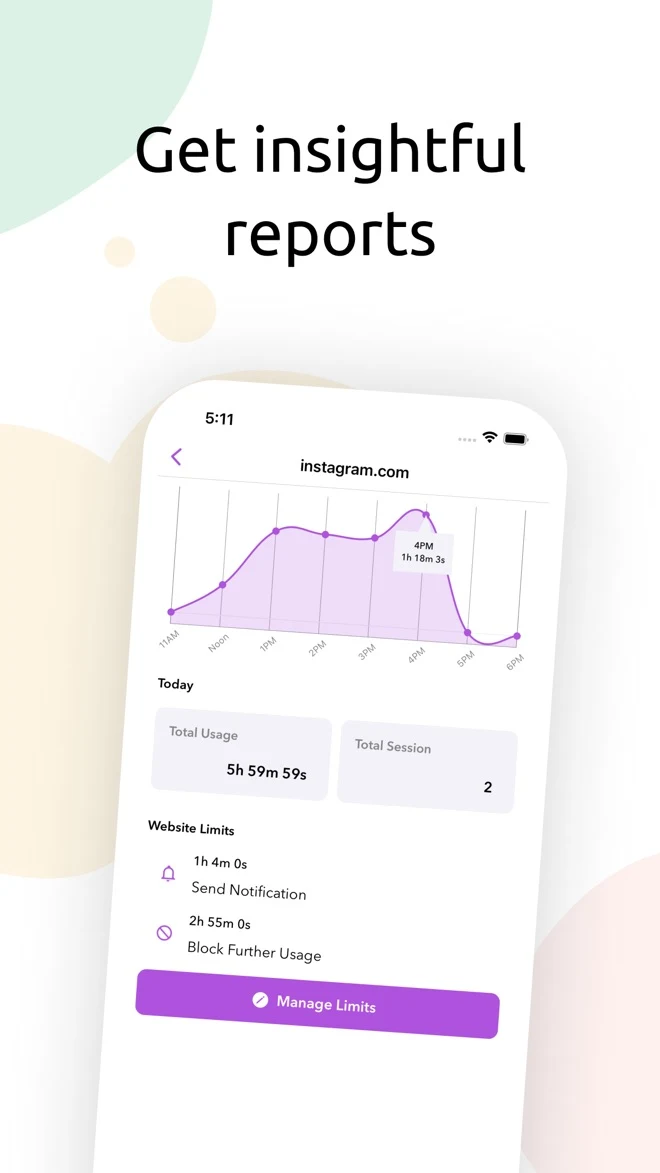
StayFree is a screen time tracker and blocker with apps for mobile and desktop devices, plus browser extensions including Chrome and Firefox. Its main appeal is seeing usage across devices, with detailed activity reports and tools for limiting distracting apps and websites.
The iPhone version falls short on the feature that matters most here: it tracks usage, but did not reliably enforce configured blocks. Its US App Store rating was 2.4 out of 5 in September 2026, with reviews confirming reported failures to block apps and activate focus sessions.
What we liked
- Broad device and browser support, with detailed cross-device usage reports and blocking tools on other platforms.
What could be better
- Unreliable iPhone blocking defeats its purpose as an app blocker. The US App Store’s 2.4 average rating and reviews describing similar failures reinforce that concern.
Verdict — Not Recommended
Not recommended for iPhone app blocking. StayFree may be useful for tracking usage or managing other devices, but an app blocker needs to enforce its limits. Choose another option for iPhone.
Download StayFreeComparison Table
Assessments reflect the iPhone experience reviewed above; features may differ on other platforms.
| App | Best for | Blocking model | Bypassability | Customizability | Ease of use | Long-term sustainability | Platforms |
|---|---|---|---|---|---|---|---|
| 1. Lusid | Highly customizable blocks that last | Schedules, usage/open limits, focus sessions, scans | Configurable; separate temporary access and edit rules | High: blocking and override conditions | Modern, clear interface | Designed to preserve blocks through brief unlocks | iPhone |
| 2. ScreenZen | Mindful pauses | Schedules, open/time limits, focus sessions | Mostly waits; strict mode and app-wide settings lock | Many options; limited active friction | Dated interface; scattered settings | Repeated overrides and broad settings access weaken limits | iPhone, Android, macOS, Windows |
| 3. Foqos | Simple physical scan-based blocking | Scan-based, scheduled, and timed focus sessions | Scan or limited breaks; inactive blocks easy to delete | Focused on scans, timers, and break allowances | Lengthy setup; clear once configured | Needs commitment to keep future blocks | iPhone; Mac website syncing |
| 4. Apple Screen Time | Simple built-in limits | Daily app limits, Downtime, content restrictions | Easy if you know the Screen Time passcode | Basic limits; few override options | Built in; enforcement settings not obvious | Depends on who controls the passcode | iPhone, iPad, Mac |
| 5. StayFree | Not recommended for iPhone blocking | Advertised limits and schedules; unreliable on iPhone | Ineffective when blocks fail to activate | Options offer little value without reliable blocking | Useful tracking; blocking unreliable | Not recommended for iPhone blocking | iPhone, Android, Windows, macOS, Linux; Chrome, Firefox, Safari |
How to Choose the Right Screen Time App
If you want highly customizable iPhone blocks that remain useful beyond a single focus session, choose Lusid. It combines a broad range of blocking methods with separate controls for brief access and lasting changes.
If you mainly want a reminder to stop scrolling, choose ScreenZen. Its mindful pauses and usage tracking suit people who want a nudge more than a difficult barrier.
If you want to put distracting apps only behind a physical scan, choose Foqos. It is a good fit for deliberate focus sessions, provided you are willing to keep future blocks in place.
If you want basic limits without another download, use Apple Screen Time. Enable its blocking settings and consider who will manage the passcode if you tend to ignore your own limits.
If you mainly want cross-device usage reports, StayFree may be useful. For reliable iPhone app blocking, choose one of the alternatives above.
FAQ: Frequently Asked Questions
What is the best free screen time app?
Lusid is our best overall pick for iPhone because it combines a broad range of blocking options with customizable controls for keeping those limits in place. ScreenZen suits mindful pauses, Foqos suits physical-scan focus sessions, and Apple Screen Time suits basic built-in limits.
Do screen time apps actually work?
They can reduce distraction by interrupting habitual app opening or blocking access during the periods you choose. The difference is whether the restrictions hold up when you want to get around them: reminders need cooperation, while protected blocks create a firmer barrier. Choose a setup you can maintain, and use your weekly screen time reports to check whether it is helping.
Can you bypass a screen time app?
How easy a block is to bypass depends on the app and how you configure it. Lusid lets you add as little or as much friction as you need to temporary overrides and block deletion, while ScreenZen’s pauses are easier to wait out. On iOS 26.4 and later, set a Screen Time passcode to prevent third-party Screen Time permissions from being switched off in Settings. On earlier iOS versions, the built-in Screen Time is the more reliable option for protecting limits due to this workaround, with a trusted person or service like Password-Locker managing your passcode.
Are screen time apps safe for privacy?
Privacy varies by app. Check its privacy policy and App Store disclosure for what usage data it collects and shares. Lusid and Foqos keep blocking data on your device. ScreenZen also stores core blocking data locally, but collects analytics and offers optional cloud features.
Find your focus with Lusid
Spend less time scrolling and more time on what matters: focused work, time with people you care about, and the habits you have been meaning to build.
Explore Lusid